
Maris: a mixing desk for your computer's sound
On this page4 sections

Maris processes the sound playing on your computer. It is written in Rust, with a menu-bar entry and a terminal interface for everyday use.
If you have used a player’s equalizer, the idea will be familiar: reduce the bass a little, bring the vocals forward, then listen. Maris puts those adjustments in the system audio path, so sound from a browser, music player, and other applications can use the same processing. Headphones and speakers can have separate saved settings.
It is for people who want some control over their sound without making every listening session complicated. One output is enough to start. The mixer, model analysis, and automation interfaces can wait until you need them.
Keep headphone correction and personal taste separate#
A common starting point is a correction profile for your headphones. Maris uses AutoEq parameter profiles: choose the matching model, then adjust the result to your preference.
These are two separate decisions. Correction uses existing measurements. Personal preference is yours: how much bass, whether to soften the treble, how wide the stereo image should be. Combining all of that into one enhancement button makes it harder to understand what changed the sound.
AutoEq has limits too. A matching model does not establish that your fit, pads, equipment, and listening conditions match the measurements. It does not measure your speakers in your room. Listen after applying a profile, and change or undo it if the result does not suit you.
Adjust, compare, then decide what to keep#
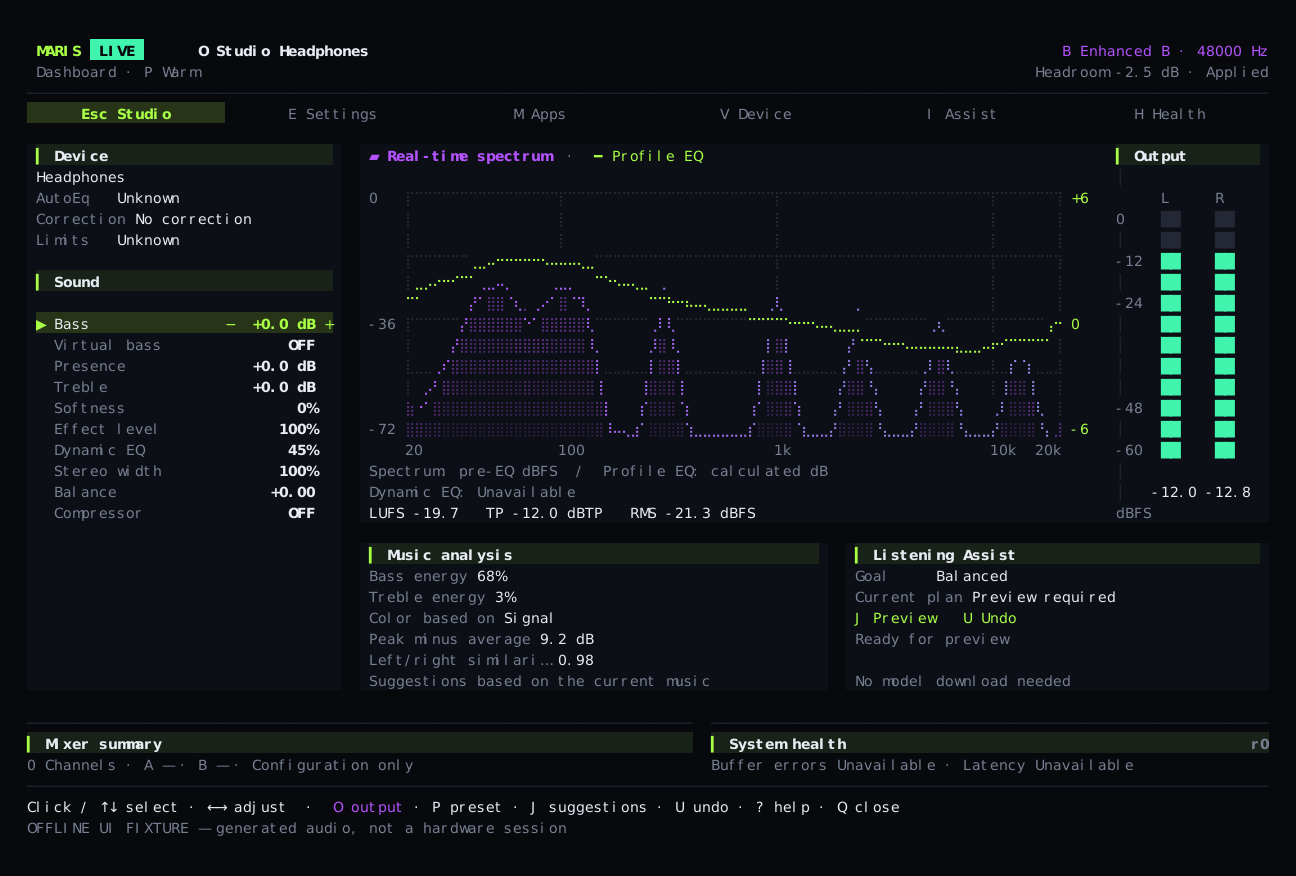
The production TUI rendered with generated test audio to show its controls and layout.
First check the selected output. Choose a listening parameter and adjust it with the plus and minus keys. Press B for reference comparison and U to undo. To change several settings together, press E, edit the draft, and apply it when ready. S stops processing.
Changing one parameter at a time makes comparisons easier. Use the same passage of audio and listen again. The EQ curve shows the processing settings, while the spectrum shows the frequency distribution of the input. Neither is an acoustic measurement of what your headphones produce.
Maris also includes dynamic frequency processing, compression, virtual bass, and stereo-width adjustment. Each has a different purpose. Compression can reduce changes in level; virtual bass may help the perceived low end on a small device. Whether a setting helps depends on the audio, device, and parameters. Enabling more processing is not automatically an improvement.
Output and preset selection require confirmation. The interface distinguishes a pending selection, saved settings, and settings acknowledged by the audio thread. A change being prepared must not appear as already active. Observations from an old device must not let a control act on a newly connected one.
Leave the menu bar open for everyday use#
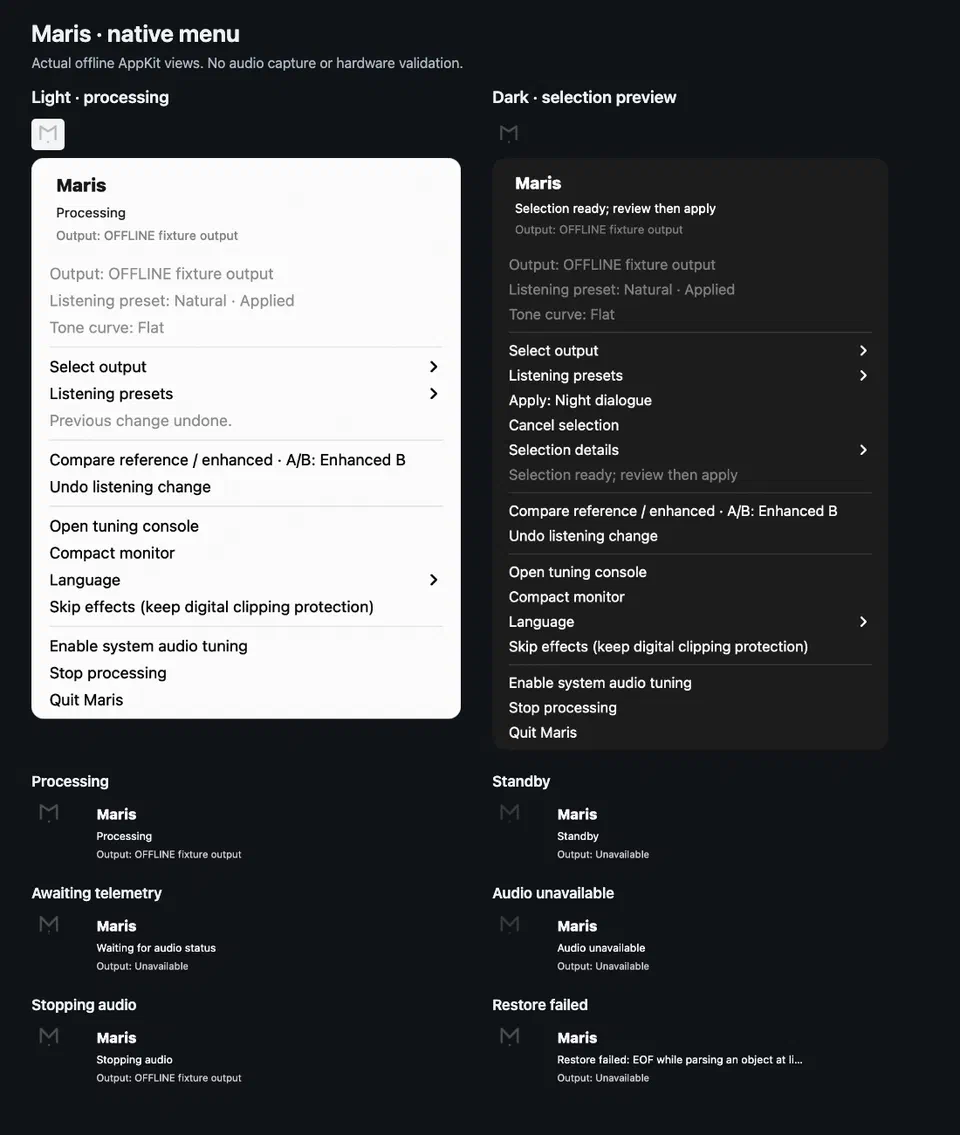
An actual macOS native menu captured with isolated offline state. Device names in the image are test data.
The menu lets you choose an output or preset, inspect the selection, and apply it. Reference comparison, undo, and stop are available there too. Open the TUI when you want more detailed controls; both interfaces share the settings.
The menu-bar M moves slightly in response to measured audio levels. With Reduce Motion enabled it stays still, and without current audio measurements it does not invent an animation. Stopping processing or failing to recover an output leaves the corresponding state visible in the menu.
Use the mixer when applications need separate routes#
The mixer accepts devices or applications as separate inputs. Each channel has volume, pan, mute, solo, EQ, and compression, and can feed two outputs.
This is where you can send music and another application to different devices. Routing changes require confirmation, and Maris attempts to restore the previous application output when it exits. The available interfaces and recovery conditions differ by platform, so a successful run on one machine does not establish compatibility everywhere.
The current paths use CoreAudio on macOS 14.2 and later, WASAPI on Windows, and a local PulseAudio service on Linux, including PipeWire’s PulseAudio compatibility layer. Native PipeWire-only applications are outside that PulseAudio path. Bluetooth switching, prolonged multi-output sessions, and particular devices need checks on the relevant hardware.
Maris can also run MusicNN locally to supply information such as genres and instruments. It needs model weights. If they are absent, or recognition fails, ordinary audio processing remains available. Speech noise reduction can be enabled separately; listening to music does not require enabling it.
For scripts, maris --json status is a useful starting point. MCP is read-only by default. Enabling writes still routes changes through settings validation; it does not grant arbitrary shell execution or control of system volume. Raw audio does not need to be uploaded to a cloud recognition service.
The project is on GitHub, with installation and platform details in the documentation. Check Releases for distribution packages. Start with your usual headphones, one output, and something you know well enough to compare. That already covers the main reason I am building Maris.